
- BCDE Project
-

What is BCDE Project?
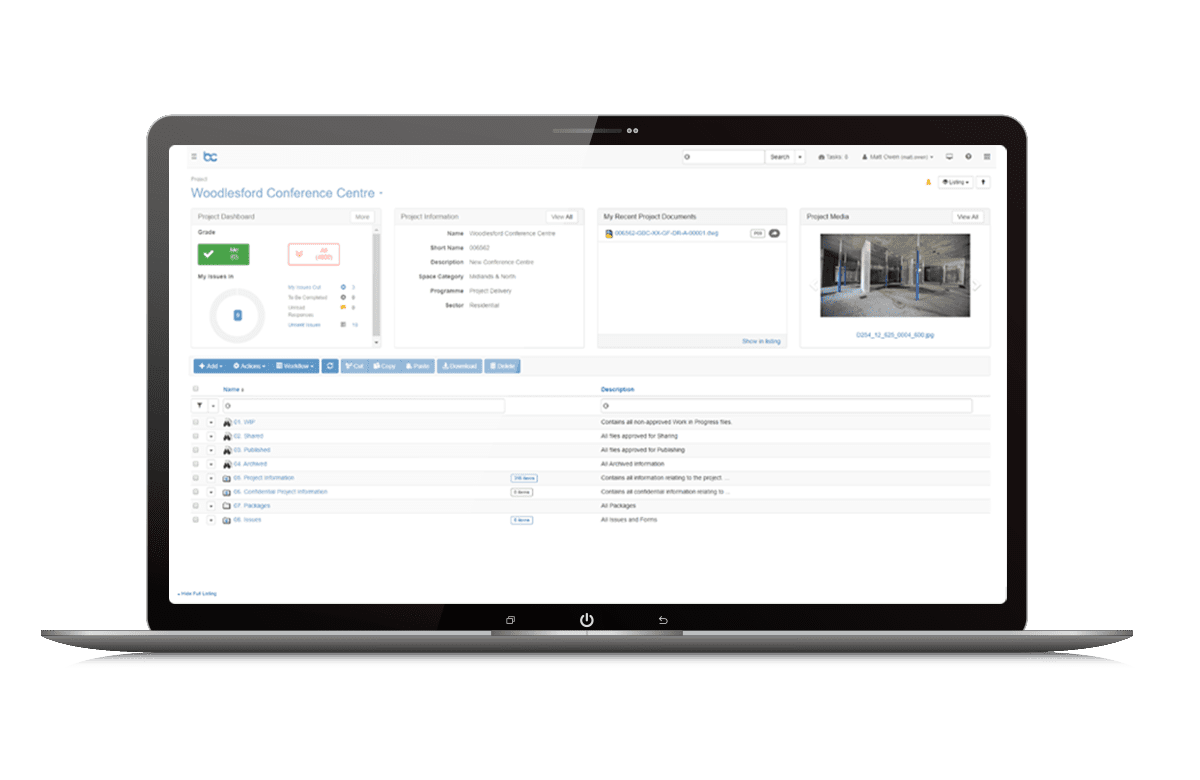
BCDE Project is an intuitive, templated common data environment (CDE), that simplifies the collating and management of documents, drawings, and information across teams.
Single Location for Project Information
Across every stage of the project, our templated CDE ensures the entire project team is connected. Remove your reliance on network folders, email, and file sharing sites and adopt a solution that makes effective project collaboration easy, affordable, and secure.
Encourages User Adoption
With its intuitive interface, BCDE Project has been impressing users with its simplicity. Google-like search capabilities makes finding project information easy, with powerful dashboards ensuring tasks aren’t missed.
Minimize Delays with Automated Tasks
Wherever possible, BCDE aims to automate processes and guide users who aren’t necessarily familiar with the process they are being asked to follow.
Highlights
- Templated SaaS CDE for projects
- Automated workflows of common tasks
- View, compare and mark up 2D drawings and documents in your browser
- Report on Project tasks and performance
- Document naming conventions ensure consistency
- Automated and streamlined transfer of files from supplier to client CDE
- BCDE Program
-
What is BCDE Program?
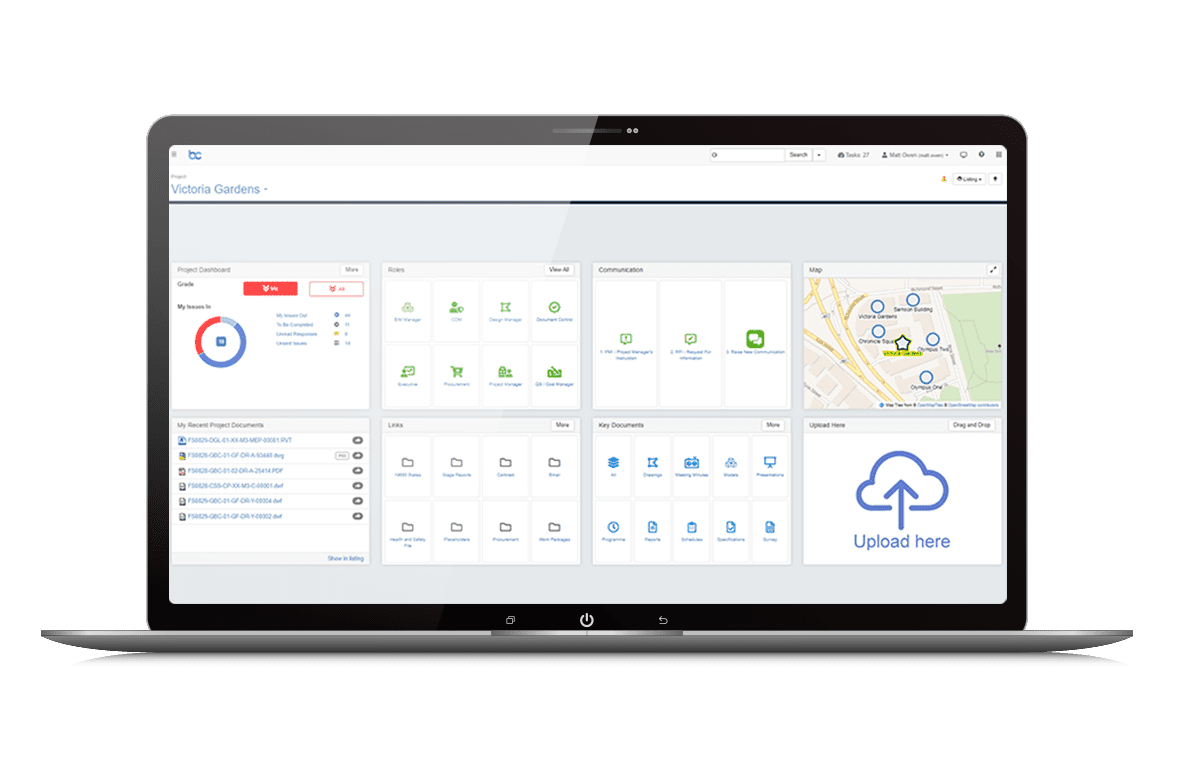
BCDE Program includes everything that is BCDE Project plus features for administering unlimited amounts of projects, programs, and other PIM workflows. It is ideal for managers, contractors, EPCM, and owners who need to drive digital adoption across multiple projects and programs.
Standardize Digital Delivery and Collaboration
Standardize digital delivery and collaboration across multiple projects, helping to drive consistency and compliance. Improve processes by promoting best practices in information management for all future projects.
Simplify Complex Project Delivery
Manage disparate teams and supply chains from a single platform. Ensure project information is compliant with industry standards, allowing you to focus on delivering your projects, not chasing collaborating parties for the right information.
Consistent and Assured Information
Our templated processes and workflows ensure consistent standards of information, helping to enforce compliance across your projects. Files are automatically named and tagged with information when uploaded, so you don’t have to worry about locating the right file. Standardized workflows control the flow of information from upload to handover, reducing delays.
Delivering Insights Within a Couple of Clicks
No more searching across numerous folders, users can find the right information using our simple ‘google-like’ search bar, click on a preset button, or view global projects on our map interface, helping to increase efficiency across your organization. Gain timely insights with powerful and concise dashboards, or set up reports that deliver progress updates to your homepage.
- BCDE Portfolio
-
What is BCDE Portfolio?
BCDE Portfolio is our premium license edition that unlocks the full project and asset information capabilities of our platform, enabling you to develop a competitive edge in your program, projects, and asset delivery. BCDE Portfolio includes Project and Program capabilities, plus more!
Supporting Your Digital Vision
We realize that not everyone wants to work to a templated process. You may have a clear strategy for your digital vision and are looking to translate this vision into a tailored solution for your organizational needs. BCDE Portfolio is our most extensible information management solution, offering a digital platform for growth.
Delivering Insights That Drive Better Decisions
We recognize that you want to retain your best-of-breed solutions for CAD, GIS, ERP, etc. where specialist content can be created and managed. BCDE Portfolio API provides a seamless connection with your ecosystem, with information relevant to the user viewed in BCDE’s intuitive interface via a web browser on your laptop, tablet, or smartphone. This forms the basis for developing digital twins for the ongoing operations, management, and optimization of projects and assets across their lifecycles.
Providing the Complete Picture
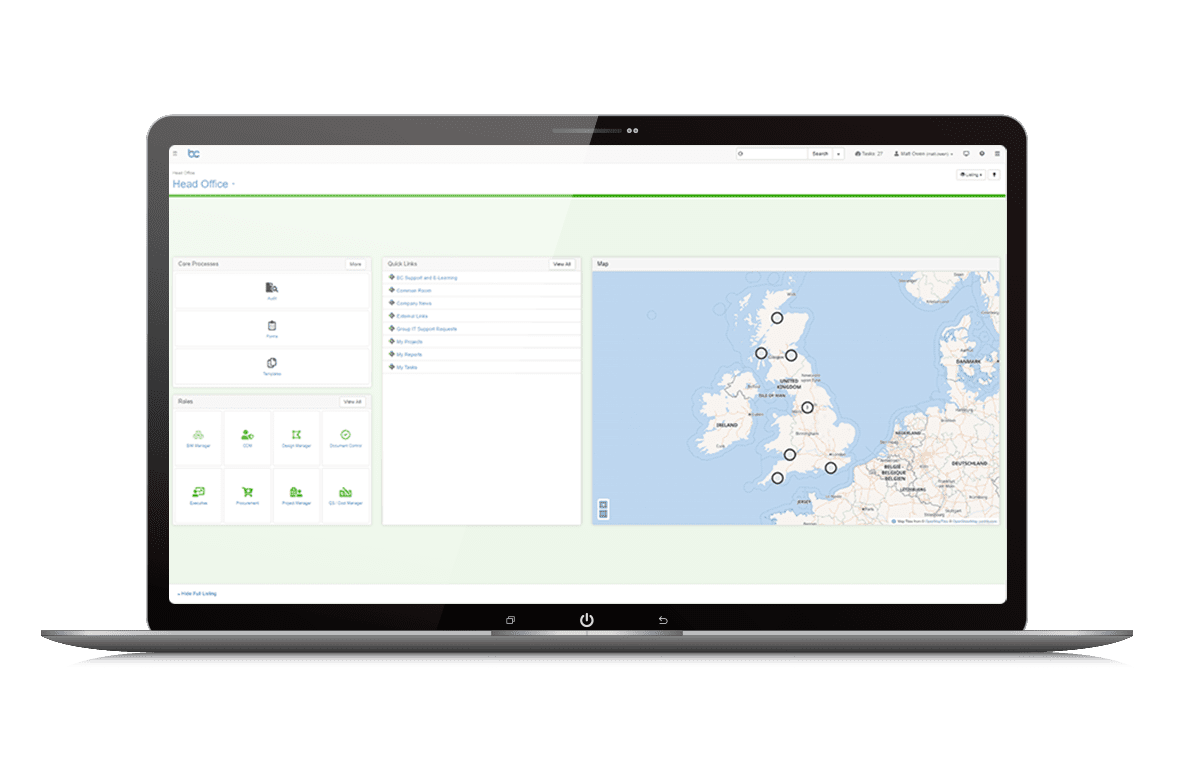
Create your own digital estate by locating and connecting your real estate, and infrastructure or construction projects to their surrounding environment in our map interface. Seamlessly integrate GIS data and move information out of departmental silos to help enrich the user experience. KML files (Google Earth) can also be visualized without requiring third-party tools, e.g. survey data can be shown on the map and linked directly to detailed reports within the system.
Highlights
- Manage UX: Configure branding and layouts
- View open GIS data on map
- Integrate third party solutions through the secure API
- Enhanced security with Bentley IMS
- Optimize and configure automated workflows
What is BCDE Project?
BCDE Project is an intuitive, templated common data environment (CDE), that simplifies the collating and management of documents, drawings, and information across teams.
Single Location for Project Information
Across every stage of the project, our templated CDE ensures the entire project team is connected. Remove your reliance on network folders, email, and file sharing sites and adopt a solution that makes effective project collaboration easy, affordable, and secure.
Encourages User Adoption
With its intuitive interface, BCDE Project has been impressing users with its simplicity. Google-like search capabilities makes finding project information easy, with powerful dashboards ensuring tasks aren’t missed.
Minimize Delays with Automated Tasks
Wherever possible, BCDE aims to automate processes and guide users who aren’t necessarily familiar with the process they are being asked to follow.
Highlights
- Templated SaaS CDE for projects
- Automated workflows of common tasks
- View, compare and mark up 2D drawings and documents in your browser
- Report on Project tasks and performance
- Document naming conventions ensure consistency
- Automated and streamlined transfer of files from supplier to client CDE
What is BCDE Program?
BCDE Program includes everything that is BCDE Project plus features for administering unlimited amounts of projects, programs, and other PIM workflows. It is ideal for managers, contractors, EPCM, and owners who need to drive digital adoption across multiple projects and programs.
Standardize Digital Delivery and Collaboration
Standardize digital delivery and collaboration across multiple projects, helping to drive consistency and compliance. Improve processes by promoting best practices in information management for all future projects.
Simplify Complex Project Delivery
Manage disparate teams and supply chains from a single platform. Ensure project information is compliant with industry standards, allowing you to focus on delivering your projects, not chasing collaborating parties for the right information.
Consistent and Assured Information
Our templated processes and workflows ensure consistent standards of information, helping to enforce compliance across your projects. Files are automatically named and tagged with information when uploaded, so you don’t have to worry about locating the right file. Standardized workflows control the flow of information from upload to handover, reducing delays.
Delivering Insights Within a Couple of Clicks
No more searching across numerous folders, users can find the right information using our simple ‘google-like’ search bar, click on a preset button, or view global projects on our map interface, helping to increase efficiency across your organization. Gain timely insights with powerful and concise dashboards, or set up reports that deliver progress updates to your homepage.
What is BCDE Portfolio?
BCDE Portfolio is our premium license edition that unlocks the full project and asset information capabilities of our platform, enabling you to develop a competitive edge in your program, projects, and asset delivery. BCDE Portfolio includes Project and Program capabilities, plus more!
Supporting Your Digital Vision
We realize that not everyone wants to work to a templated process. You may have a clear strategy for your digital vision and are looking to translate this vision into a tailored solution for your organizational needs. BCDE Portfolio is our most extensible information management solution, offering a digital platform for growth.
Delivering Insights That Drive Better Decisions
We recognize that you want to retain your best-of-breed solutions for CAD, GIS, ERP, etc. where specialist content can be created and managed. BCDE Portfolio API provides a seamless connection with your ecosystem, with information relevant to the user viewed in BCDE’s intuitive interface via a web browser on your laptop, tablet, or smartphone. This forms the basis for developing digital twins for the ongoing operations, management, and optimization of projects and assets across their lifecycles.
Providing the Complete Picture
Create your own digital estate by locating and connecting your real estate, and infrastructure or construction projects to their surrounding environment in our map interface. Seamlessly integrate GIS data and move information out of departmental silos to help enrich the user experience. KML files (Google Earth) can also be visualized without requiring third-party tools, e.g. survey data can be shown on the map and linked directly to detailed reports within the system.
Highlights
- Manage UX: Configure branding and layouts
- View open GIS data on map
- Integrate third party solutions through the secure API
- Enhanced security with Bentley IMS
- Optimize and configure automated workflows